

Market orders
A market order fills immediately against the best prices resting in the order book. You choose the side and the quantity; the price is whatever the book offers. Use a market order when getting filled now matters more than the exact price. Larger orders on thinner books fill across several price levels, so the average price can be worse than the best price you saw (slippage). The order form shows the expected execution price before you submit.Limit orders
A limit order sets the worst price you accept. A buy fills at your price or lower; a sell at your price or higher. If it can’t fill immediately, it rests in the order book until it fills or you cancel it. Use a limit order when the price matters more than the timing.Trigger orders
Add a Trigger Price to an order and it waits until the market reaches that price before it’s placed. This is how stop orders work: a sell triggered below the current price limits a loss on a long, and a buy triggered above it can enter a breakout.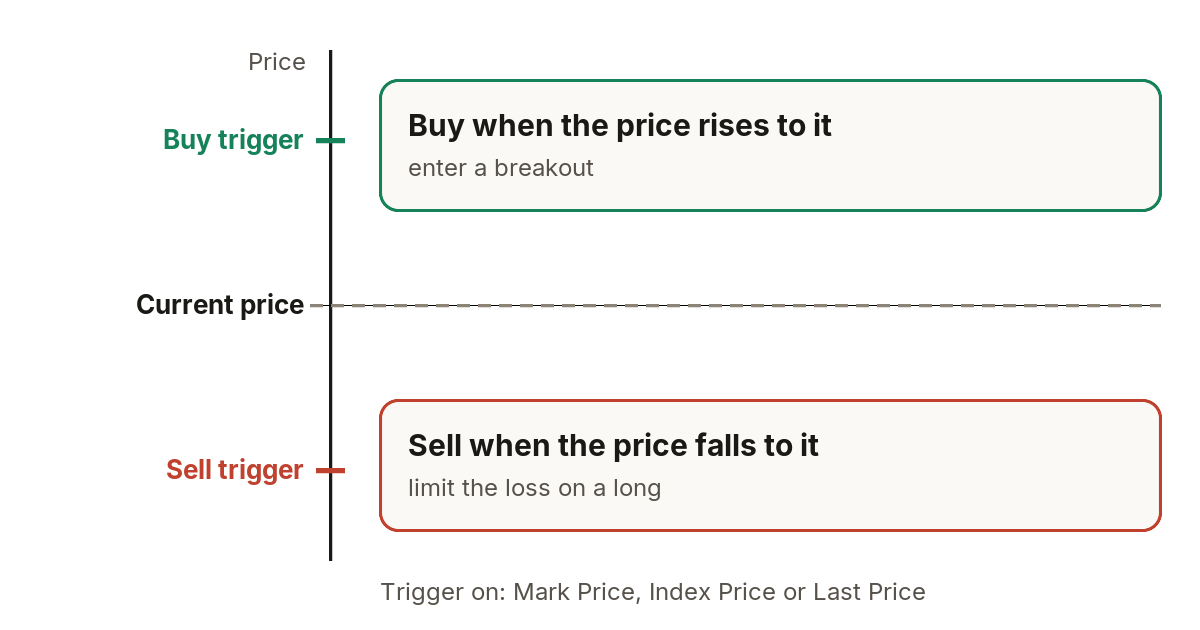
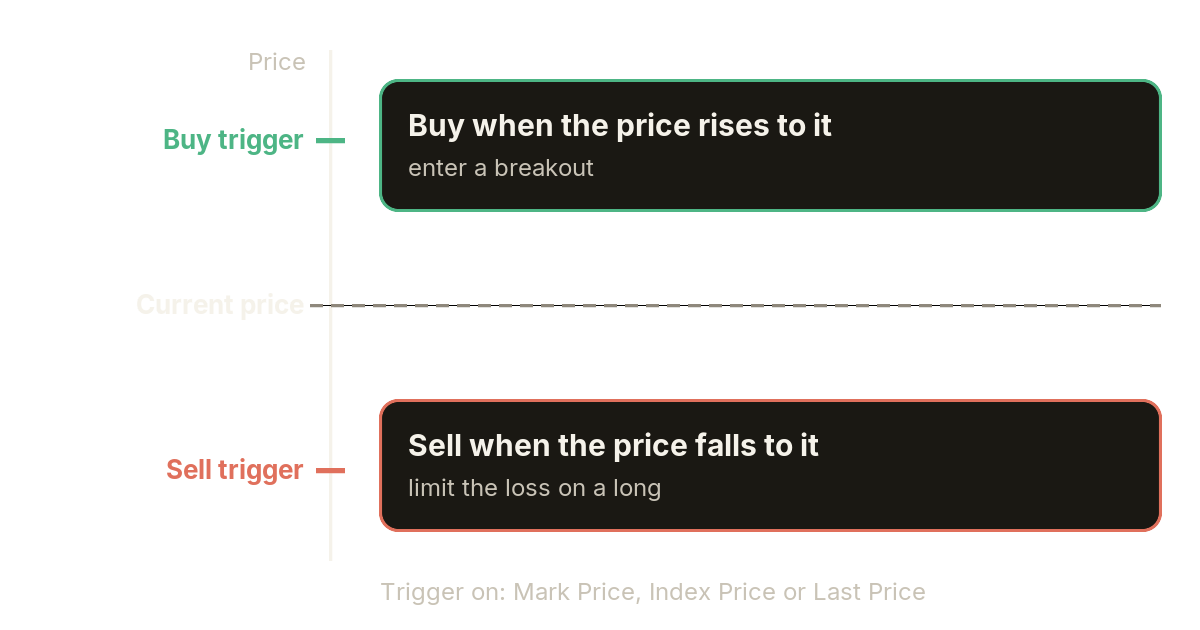
Trigger orders above and below the price.
Trigger orders you’ve placed appear on the Triggers page until they fire or are cancelled.
Sizing an order
You can enter the quantity three ways:- In the asset, for example 0.01 BTC.
- In USD, as a dollar amount. On Everstrike, USD means evUSD.
- As a share of available, from your available balance.